Canva Shirt Design: How to Make Custom T-Shirts for DTF Printing
Learn Canva shirt design step by step: size your canvas, export a transparent PNG, and get custom shirts print-ready for DTF transfers.
Searches for "canva custom t shirts", "canva t shirt maker" and the misspelling "canvas custom shirts" all land on the same question: how do I get a shirt made from a Canva design? There are two routes. Canva Print will print and ship a shirt from inside Canva. Or you export the artwork and send it to a DTF transfer supplier, which costs less per shirt at any quantity above a handful and lets you choose the blank. This guide is about the second route.
How do you make a shirt design in Canva?
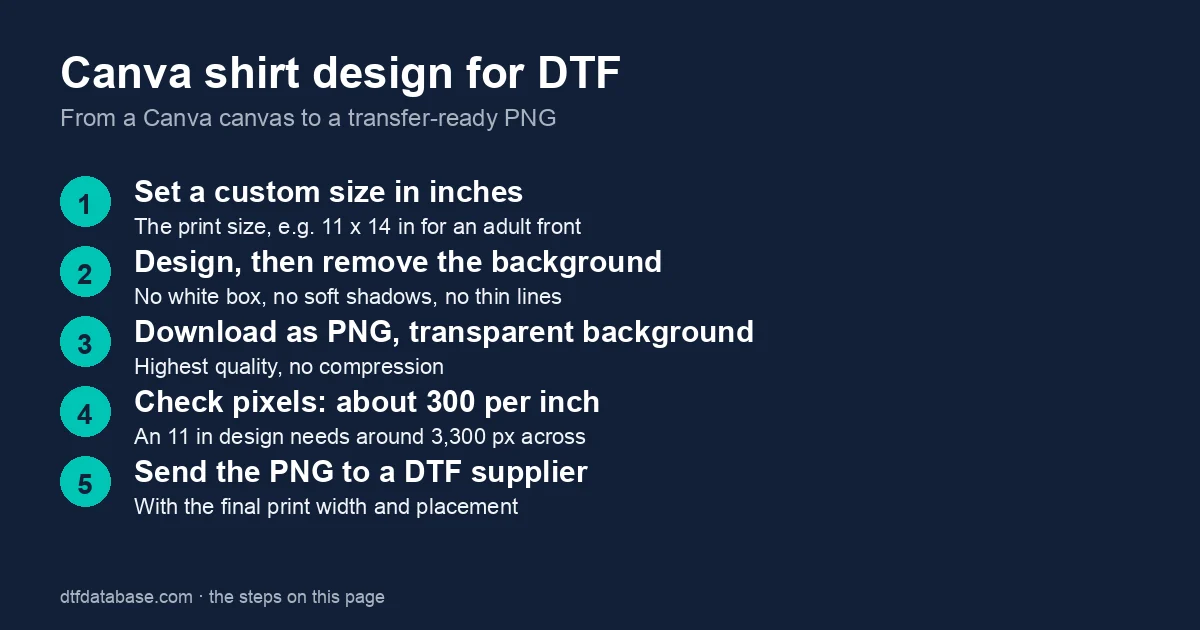
To make a shirt design in Canva, create a custom-size canvas at the print dimensions, add your text and graphics, and remove the background. Then export it as a high-quality PNG with transparency. Check the resolution is about 300 DPI at full size, then upload the file to your DTF printer.
The steps below expand on each of those points. Canva's menus move around with updates, so the names are given as Canva labels them in late 2026; if a label has changed, the setting is still there under the same menu.
Step 1: Set the canvas to the print size, in inches
Open Create a design and choose Custom size. Switch the units from pixels to inches and enter the size the transfer will be printed at, not the size of the shirt. Typical print sizes:
| Placement | Adult tee | Youth tee |
|---|---|---|
| Full front | 11–12 in wide, 12–14 in tall | 8–10 in wide |
| Left chest | 3.5–4 in wide | 2.5–3.5 in wide |
| Full back | 12–14 in wide | 9–11 in wide |
| Sleeve | 2–3 in wide | 1.5–2.5 in wide |
Those ranges are from the t-shirt design placement size chart; the placement calculator draws any transfer size on any shirt size so you can see it before you order. Setting the canvas in inches matters because Canva works in pixels underneath, and a canvas created at the default social-media size (1080 × 1080 px) is about 3.6 inches at print resolution. Scaling that up to 11 inches makes every edge soft.
Do not start from a Canva t-shirt template unless you check its size first. Many are mockups, which are a photo of a shirt with a design placed on it, not the design itself (more on that below).
Step 2: Design with DTF in mind
A DTF transfer prints every pixel that is not fully transparent, with a layer of white ink underneath it. That one fact drives all the design rules:
- No background. Click the canvas background and make sure no colour is set. A white or coloured background is a rectangle of ink on the shirt. If the design started from a photo or a template with a background, use Canva's Background Remover on the image (a Canva Pro feature) or delete the background layer.
- No soft shadows, glows or blurred edges. Canva's drop shadow and glow effects fade from solid to transparent. The semi-transparent pixels print as a speckled grey fringe with white ink showing through. If you want a shadow, make it a hard-edged, solid-colour offset copy of the text.
- No semi-transparent fills. The same applies to a layer at 50% opacity: it prints as dots. Keep every element at 100% opacity. Fading edges can be done in a raster editor after export, but not in Canva.
- Keep lines and text heavy. Hairline strokes and small, thin type can crack or flake after washing. Most suppliers publish a minimum line weight and text size for their transfers; check the one you plan to order from, and when in doubt, make it bolder.
- Fonts: two is plenty. Canva's font library is licensed for use in designs you sell. Pick a bold display face and one supporting face.
- Design at full size. Zoom in to 100% before exporting. If something looks rough at 100% on screen, it will look rough on the shirt.
Canva works in RGB. DTF printers convert that to CMYK plus white, so the brightest neon greens, electric blues and hot pinks print a step duller than they look on a screen. Solid, saturated but not fluorescent colours translate best.
Step 3: Download as a transparent PNG
Click Share, then Download. Set File type to PNG. Tick Transparent background. Canva lists transparent downloads as a feature of its paid plans (Pro, Teams, Education and Nonprofits); on the free plan the box is shown but locked, and the file downloads with a white background. Leave the Compress file box unticked, and if a Size slider is offered, push it to the highest setting.
Then check the pixel dimensions of the file you downloaded, because the transparent box only controls the background, not the resolution. The target is about 300 pixels per inch at the final print size:
| Print width | Pixels across (at 300 ppi) |
|---|---|
| 4 in (left chest) | 1,200 px |
| 8 in (youth front) | 2,400 px |
| 11 in (adult front) | 3,300 px |
| 14 in (full back) | 4,200 px |
If the file is smaller than that, the canvas was created too small; go back to step 1 rather than enlarging the PNG, which cannot add detail. Most DTF suppliers accept anything from about 150 ppi upward, but 300 is the figure that keeps fine text crisp. The DTF file prep guide covers PNG and PSD requirements in more depth.
Step 4: Check the file before you send it
Open the downloaded PNG in anything that shows transparency as a checkerboard (Preview on a Mac, Photos on Windows, or a browser tab). Look for:
- A white or coloured box around the design. If there is one, the background was still set in Canva, or the download was made on a plan without transparent export.
- Stray pixels outside the design, often left behind by the background remover.
- Faint fringes around text that had an effect applied.
- The size in pixels, against the table above.
Name the file with the print width in it (logo-front-11in.png) so there is no guessing on the supplier's end.
Step 5: Order the transfer
Upload the PNG to a DTF supplier, enter the print width (the supplier scales the height to match), and choose the quantity. For one or two designs, order them by size. For several designs, build a gang sheet, which packs many designs onto one sheet sold by the foot and roughly halves the cost per design; the gang sheet guide explains the layout. The DTF transfer buying guide walks through pricing and what to expect at each step, and the supplier directory lists verified transfer suppliers, most with no minimum order.
The supplier prints the transfer, and you (or they, if you order printed shirts) heat press it onto the blank. The DTF shirts guide covers the pressing, washing and cost side.
Is Canva good for custom shirt design?
Yes, for the designs most custom shirts need: text, logos, flat illustrations, and photos with a clean edge. Canva's limits show up at the edges of that:
- Raster only. Canva exports pixels, not vectors, so the design has to be made at the print size. A logo that will be printed at 14 inches needs a 14-inch canvas.
- No CMYK preview. Colours can shift at print. For a brand colour that has to match exactly, send the supplier the CMYK or Pantone value and ask for a proof.
- Effects are not print-safe. Shadows, glows and transparency, as above.
- Transparent export is a paid feature. The free plan is fine for designing, but the file you need to send to a supplier comes from a paid plan or from a free alternative.
The free alternative with the most headroom is Affinity, which Canva itself made free in October 2025 and which handles vectors, CMYK and true transparency. The Affinity for DTF guide covers setting it up. Many shops design in Canva and finish in Affinity or Photoshop.
Common Canva mistakes on DTF transfers
| Mistake | What it looks like on the shirt | Fix |
|---|---|---|
| Canvas at a social-media size | Soft, pixelated edges | Custom size in inches at the print size |
| Background left on | A white rectangle behind the art | Remove the background before downloading |
| Downloaded without transparency | Same white rectangle | Tick Transparent background (paid plans) |
| Drop shadow or glow | Grey speckled fringe | Use a solid, hard-edged offset instead |
| Layer below 100% opacity | Dotted, washed-out area | Set every element to 100% |
| Hairline text or strokes | Cracks and flakes after washing | Heavier weights; check the supplier's minimum |
| Fluorescent colours | Prints duller than the screen | Choose saturated, non-neon colours |
| Mockup exported as the print file | A photo of a shirt prints on the shirt | Export the design layer only |
Mockups are not print files
Canva's t-shirt maker and many of its "custom t-shirt" templates are mockups: a photograph of a blank shirt with your design placed on the chest. They are useful for a listing photo or a customer approval, and useless as a print file. Build the design on its own transparent canvas, export that, and then, if you want a mockup, drop the exported PNG onto a mockup template as a separate design. Keep the two files apart.
Can you sell shirts made with Canva designs?
Canva's content licence allows designs made with its free and Pro elements to be used on products you sell, including shirts, with limits on reselling an unaltered template or a stock element on its own, and on trademarking a design built from Canva elements. Check Canva's licence page for the current wording before you build a product line on a stock illustration, and avoid licensed characters and brand logos in any tool. The custom t-shirt business guide covers the rest of the legal basics, and the DTF design ideas guide has directions that do not depend on stock art.
Frequently Asked Questions
Can you make a t-shirt design on Canva for free?
Yes. Designing is free, and so is a PNG download with a white background. Downloading with a transparent background, which a DTF transfer needs, is a feature of Canva's paid plans, so free-plan users either upgrade for a month, remove the background in another tool, or design in a free alternative such as Affinity.
What size should a t-shirt design be in Canva?
Set a custom size in inches equal to the print size: about 11 by 14 inches for an adult full front, 3.5 to 4 inches wide for a left chest, 8 to 10 inches wide for a youth front. Export at the highest quality so the PNG is close to 300 pixels per inch, which is about 3,300 pixels across for an 11-inch print.
Does Canva print t-shirts?
Yes. Canva Print sells printed t-shirts made from a Canva design, ordered from inside the editor. It is the simplest route for a single shirt. For more than a few shirts, or for a specific blank, exporting the design and ordering DTF transfers from a supplier costs less per shirt and gives you control of the garment.
Why does my Canva design have a white box on the transfer?
Either the canvas background still had a colour set, or the PNG was downloaded without the Transparent background option, which happens on the free plan. Open the PNG and look for a checkerboard behind the design; if the background is white, remove it in Canva and download again with transparency ticked.
Can I use Canva's fonts and graphics on shirts I sell?
Canva's licence covers free and Pro fonts and elements used in your own designs on products you sell, with limits on reselling stock elements on their own or as unaltered templates. Read the current licence page before building a product on a stock graphic, and never use licensed characters or brand marks.
Sources
- Canva's own documentation for custom sizes and the Download dialog (file type, transparent background, compression), as shown in the editor in October 2026.
- Published artwork guidance from DTF transfer suppliers, including Ninja Transfers' Canva artwork tips (14 × 18 inch canvas, 300 DPI, transparent PNG, fonts) and Kolormatrix's Canva print-ready guide (custom size in inches, 300 pixels per inch, no compression, background removal).
- DTF Database's placement size chart and file prep guide for the size and resolution figures.
Canva's plan features and licence terms change; the plan notes above are as published in October 2026. DTF Database has no affiliation with Canva.
Related Guides
Tags
About the Author
DTF Database Founder
Darrin DeTorres has over 10 years of experience in the print industry, specializing in screen printing, sublimation, embroidery, HTV, and DTF printing. He runs Notice Me Marketing and Media, a custom apparel production company that prints thousands of shirts per month.
More from Tutorials
Explore DTF Database
Browse and compare 20+ verified DTF printer models by price, features, and specifications.
Read moreCalculate your per-print costs, profit margins, and ROI for DTF printing.
Read moreBrowse verified DTF suppliers for ink, film, powder, and equipment.
Read moreFind DTF transfer suppliers shipping to your state, with verified turnaround times.
Read moreMetro-level DTF supplier guides for Los Angeles, NYC, Dallas, Houston, and more.
Read moreStep-by-step guide to the DTF printing process with temperatures and troubleshooting.
Read more